案例一
1. 設置捷徑
目標位置:"C:\Users\allen\AppData\Local\Programs\Microsoft VS Code\Code.exe" C:\workspace\python\firstproject
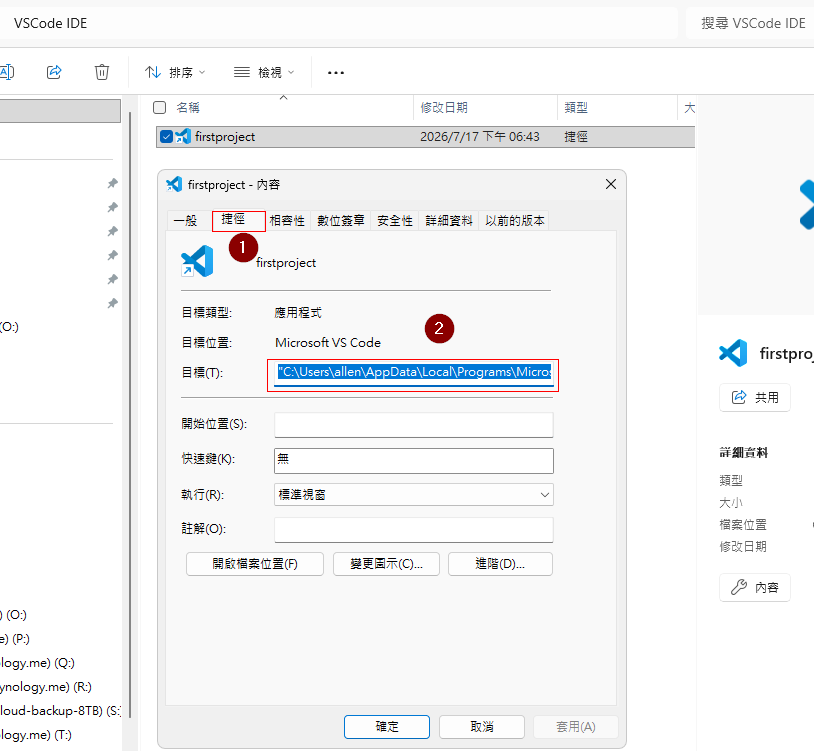
2. 全局環境下的settings.json
追加 python終端機設置的Profile
"terminal.integrated.profiles.windows": {
    "python": {
        "path": "C:\\Windows\\System32\\cmd.exe",
        "args": [
            "/k",
            "chcp 65001"
        ],
        "icon": "python"
    }
}
3. 專案下設置 .vscode
1. .vscode/settings.json
   {
     "terminal.integrated.defaultProfile.windows": "python",
     "terminal.integrated.enablePersistentSessions": true,
     "terminal.integrated.fontFamily": "Consolas, 'Microsoft JhengHei', monospace",
     "terminal.integrated.fontSize": 18,
     "editor.fontSize": 18,
     "editor.lineHeight": 1.8,
     // ── 編碼設定 ──────────────────────────────────
     // 專案所有檔案預設使用 UTF-8
     "files.encoding": "utf8",
     // 自動偵測 BOM(讓 VS Code 自動識別 UTF-8 BOM 檔案)
     "files.autoGuessEncoding": true,
     "markdown.preview.fontFamily": "'Microsoft JhengHei', 'PingFang TC', sans-serif"
    }
2. .vscode/tasks.json
{
  "version": "2.0.0",
  "tasks": [
     {
        "label": "Auto Terminal",
        "type": "shell",
        "command": "cd /d C:\\workspace\\python",
        "options": {
            "shell": {
                "executable": "cmd.exe",
                "args": ["/d", "/c"]
            }
        },
        "presentation": {
            "panel": "new",
            "reveal": "always",
            "focus": true,
            "close": true
        },
        "runOptions": {
            "runOn": "folderOpen"
        }
     }
  ]
}
4. 在 VS Code 中允許自動任務執行
VS Code 預設為了安全,會阻止任何在專案開啟時「自動執行」的指令。我們必須在 IDE 中跟它說「我是信任這個專案的,請幫我執行」:
- 用你的捷徑開啟
firstproject專案。 - 點擊鍵盤上的
F1鍵(或Ctrl + Shift + P)開啟上方的命令面板。 - 在輸入框中輸入並選擇:
工作: 管理自動工作
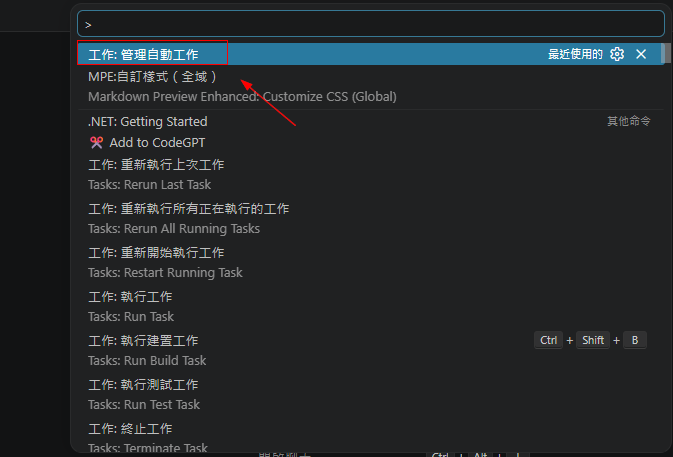
- 點擊
允許自動工作

5. 雲端連結
mklink /J "%UserProfile%\Desktop\VSCode IDE" "%UserProfile%\Google 雲端硬碟檔案串流\我的雲端硬碟\shortcut\vscode"案例二
虛擬環境 dvds
1. 全域設定:User settings.json
路徑:
%APPDATA%\Code\User\settings.json
程式碼:
settings.json{ // ... 其他全域設定保持不變 ... // ==================== Windows 終端機與 AI 輔助設定 ==================== // 1. 全域預設 Shell(避免 AI 工具或 VS Code 預設喚醒 PowerShell) "terminal.integrated.defaultProfile.windows": "Command Prompt", // 2. 自動化與背景任務專用的 Shell 執行檔 "terminal.integrated.automationProfile.windows": { "path": "C:\\Windows\\System32\\cmd.exe" }, // 3. 停用 PowerShell 擴充功能自動啟動與 Session 還原 "powershell.startAutomatically": false, "terminal.integrated.enablePersistentSessions": false, // 4. Continue AI 插件設定(防止 AI 背景 agent 強制開啟額外 PowerShell) "continue.enableTabAutocomplete": true, // 5. Windows 終端機編碼與環境變數設定 (UTF-8 避免亂碼) "terminal.integrated.detectLocale": "off", "terminal.integrated.setLocaleVariables": true, "terminal.integrated.env.windows": { "PYTHONIOENCODING": "utf-8", "PYTHONUTF8": "1", "PYTHONLEGACYWINDOWSSTDIO": "0", "CHCP": "65001" }, // 6. 自訂 Windows Profiles (提供專案層級引用) "terminal.integrated.profiles.windows": { "dvds": { "path": "C:\\Windows\\System32\\cmd.exe", //"args": [ // "/k", // "chcp 65001 && call C:\\dvds\\Scripts\\activate.bat" //], "icon": "python" }, } }
2. 專案區域設定:.vscode/settings.json
路徑:
[專案資料夾]/.vscode/settings.json
程式碼:
settings.json{ // 指定 Windows 環境下,VS Code 整合終端機預設使用的 Profile 名稱(此處指定為自訂的 "dvds" Profile,開啟終端機時會自動載入該環境) "terminal.integrated.defaultProfile.windows": "dvds", // 指定新建立的終端機視窗要在底部「面板 (panel)」區域開啟,而非嵌入在編輯器分頁 (editor) 中 "terminal.integrated.terminalParent": "panel", // 設定 VS Code 啟動時不自動開啟歡迎頁面或無標題的新檔案(開機時保持乾淨的編輯區) "workbench.startupEditor": "none" }
3. 專案自動啟動任務:.vscode/tasks.json
路徑:
[專案資料夾]/.vscode/tasks.json
程式碼:
tasks.json{ // 指定 Task 設定檔的版本,2.0.0 為 VS Code 的標準格式版本 "version": "2.0.0", // 任務清單陣列,可包含多個自動化任務 "tasks": [ { // 任務的顯示名稱,會出現在 VS Code 任務選單與終端機頁籤上 "label": "Auto Terminal", // 指定任務類型為 Shell 命令(使用系統命令列執行) "type": "shell", // 要執行的主要程式命令(此處為 Windows 的命令提示字元 cmd.exe) "command": "cmd.exe", // 傳遞給 command (cmd.exe) 的參數列表 "args": [ // /k 參數:執行完後續命令後「保持 CMD 開啟狀態」,不自動關閉視窗 "/k", // 先將 CMD 編碼切換為 UTF-8 (65001),接著載入並啟用指定的 Python 虛擬環境 "chcp 65001 && call C:\\dvds\\Scripts\\activate.bat" ], // 將任務標示為背景長駐服務,告訴 VS Code 不需要等待它執行結束(可避免跳出「按任意鍵關閉終端機」提示) "isBackground": true, // 控制終端機面板的顯示方式與行為 "presentation": { // 為此任務建立專屬的獨立終端機面板 (dedicated) "panel": "dedicated", // 任務觸發時,總是 (always) 自動顯示/跳出終端機面板 "reveal": "always", // 終端機開啟後,自動將滑鼠游標焦點移至該終端機內(方便直接輸入命令) "focus": true, // 任務結束時不自動關閉面板 "close": false }, // 任務的自動執行條件設定 "runOptions": { // 當此專案資料夾被開啟時 (folderOpen),自動觸發並執行此任務 "runOn": "folderOpen" } } ] }
💡 運作原理小結
-
全域預設改用
Command Prompt,讓 Continue / AI 套件在啟動或背景檢測時只會呼叫cmd.exe,不再召喚PowerShell。 -
當開啟特定專案資料夾時,專案內的
.vscode/settings.json會覆蓋預設 Profile,將新建的終端機指定為帶有 Python 虛擬環境的dvds。 -
.vscode/tasks.json在folderOpen時觸發,順暢開啟單一且正確的dvds終端機面板!
相關主題與延伸閱讀
- 2. 在 Visual Studio Code IDE 開發 Python 程式如何設定除錯:同樣是
.vscode資料夾下設定檔的應用,可搭配launch.json一起設定。 - 3. 在 Python 生成 Snippets:進一步提升 VS Code 開發效率的自訂程式碼片段技巧。
- 1. Visual Studio Code 擴充套件推薦:認識更多能加速開發流程的 VS Code 擴充套件。
- 3. 虛擬環境設置:本篇範例中提到的虛擬環境(如
dvds)啟動方式可參考此篇。